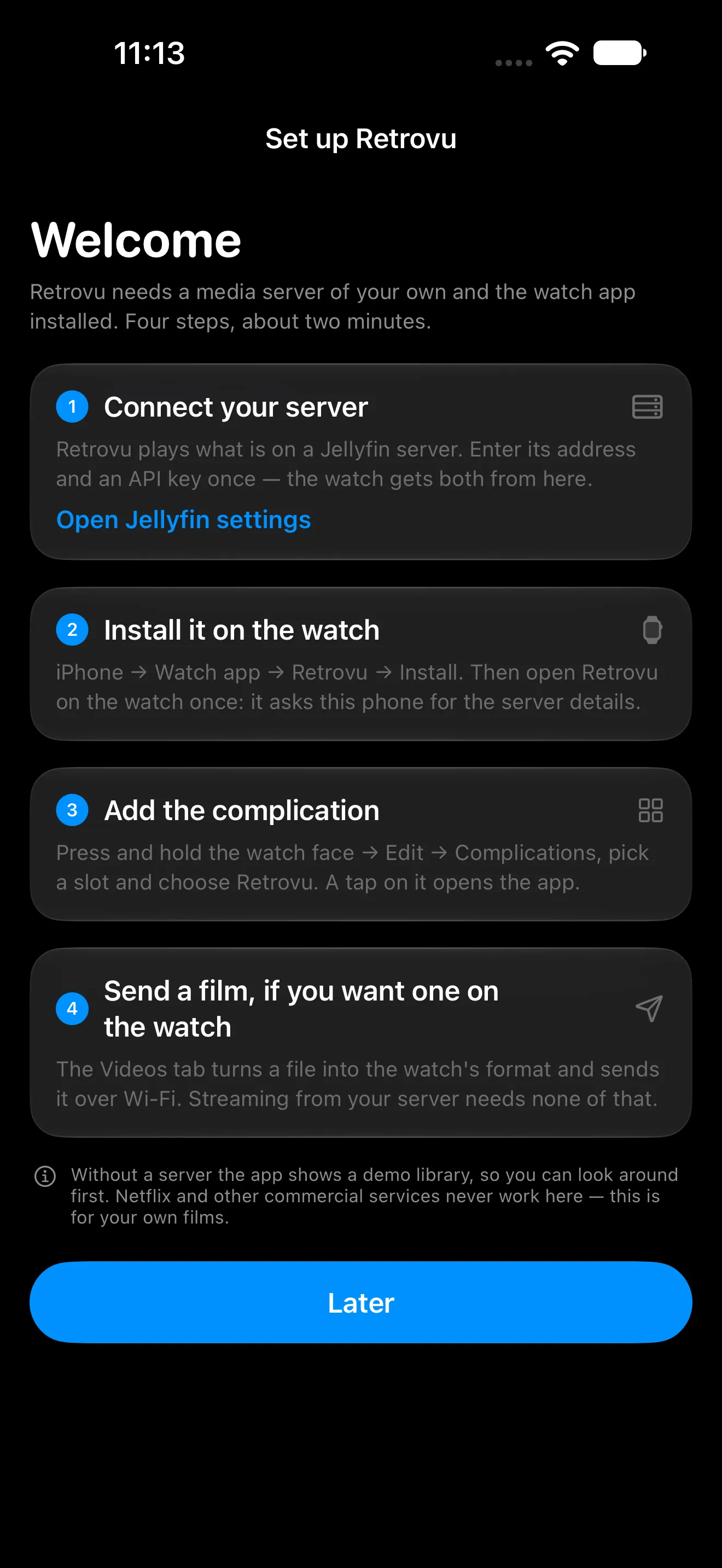
1. Connect your server
Enter your Jellyfin address and an API key once. The watch receives both from the phone. Server not set up yet?
Apple Watch and iPhone
Retrovu turns an old Apple Watch into a working television. It plays the films from your own Jellyfin server, behind ten CRT filters, with a remote on the iPhone.
€4.99 or $4.99, one-time · on the App Store in 175 countries and regions · watchOS 26 and iOS 26
Needs a Jellyfin server on your own network — free, but you run it.
In the wild
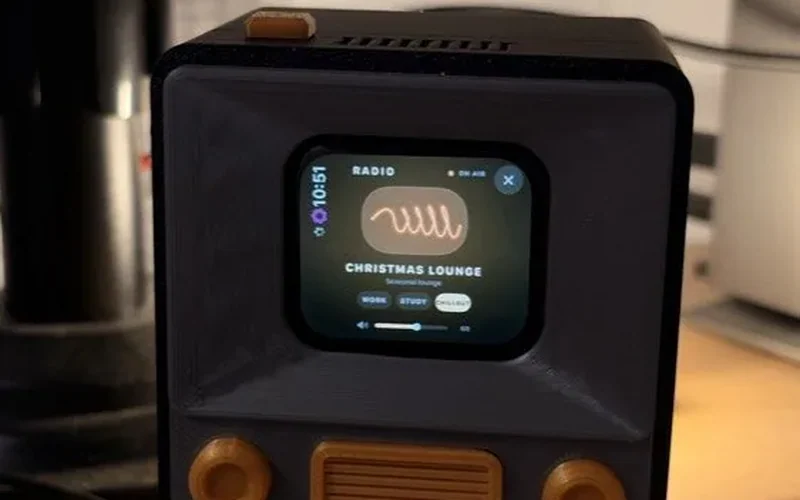
A printed case, an old watch, and the app doing the rest. The screen shows a dead channel here — further down you can watch a film start.
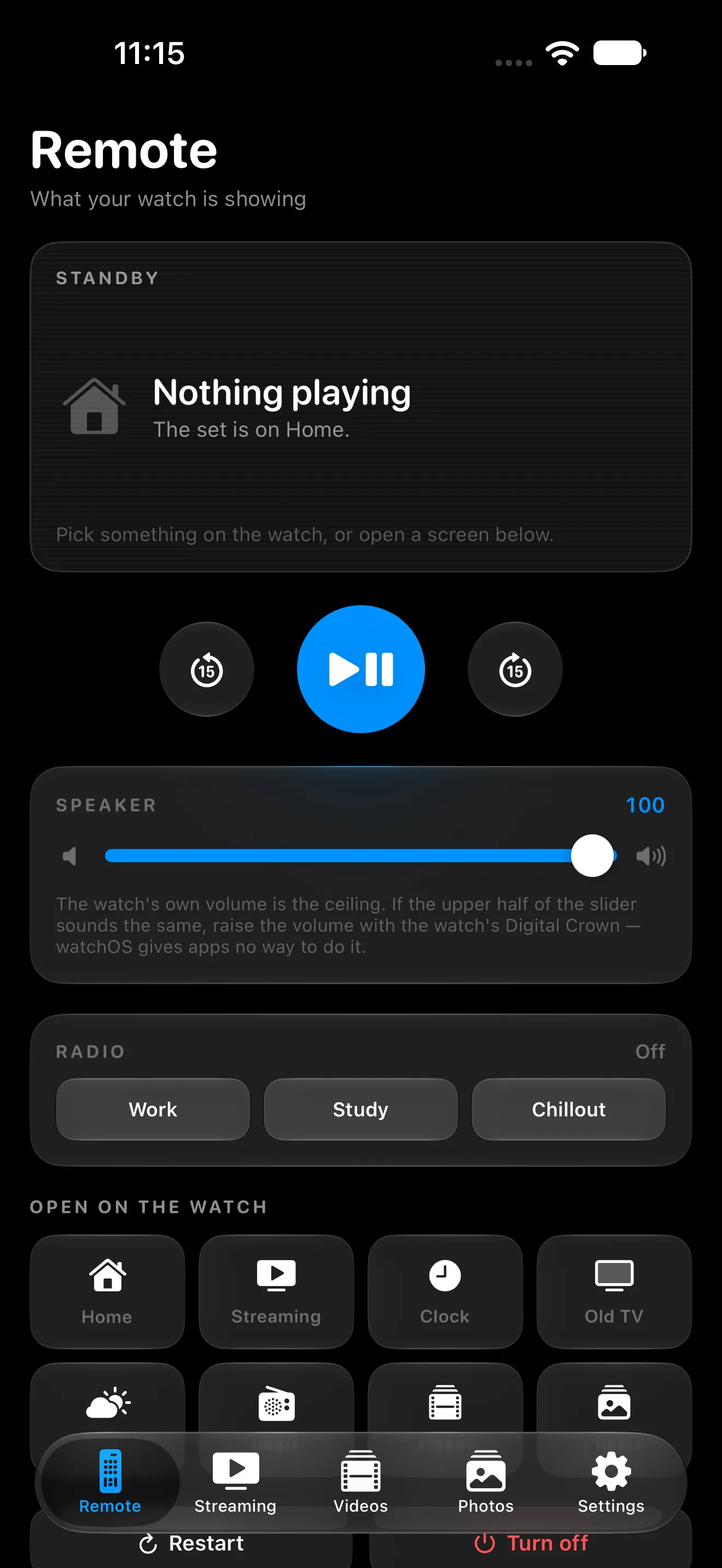
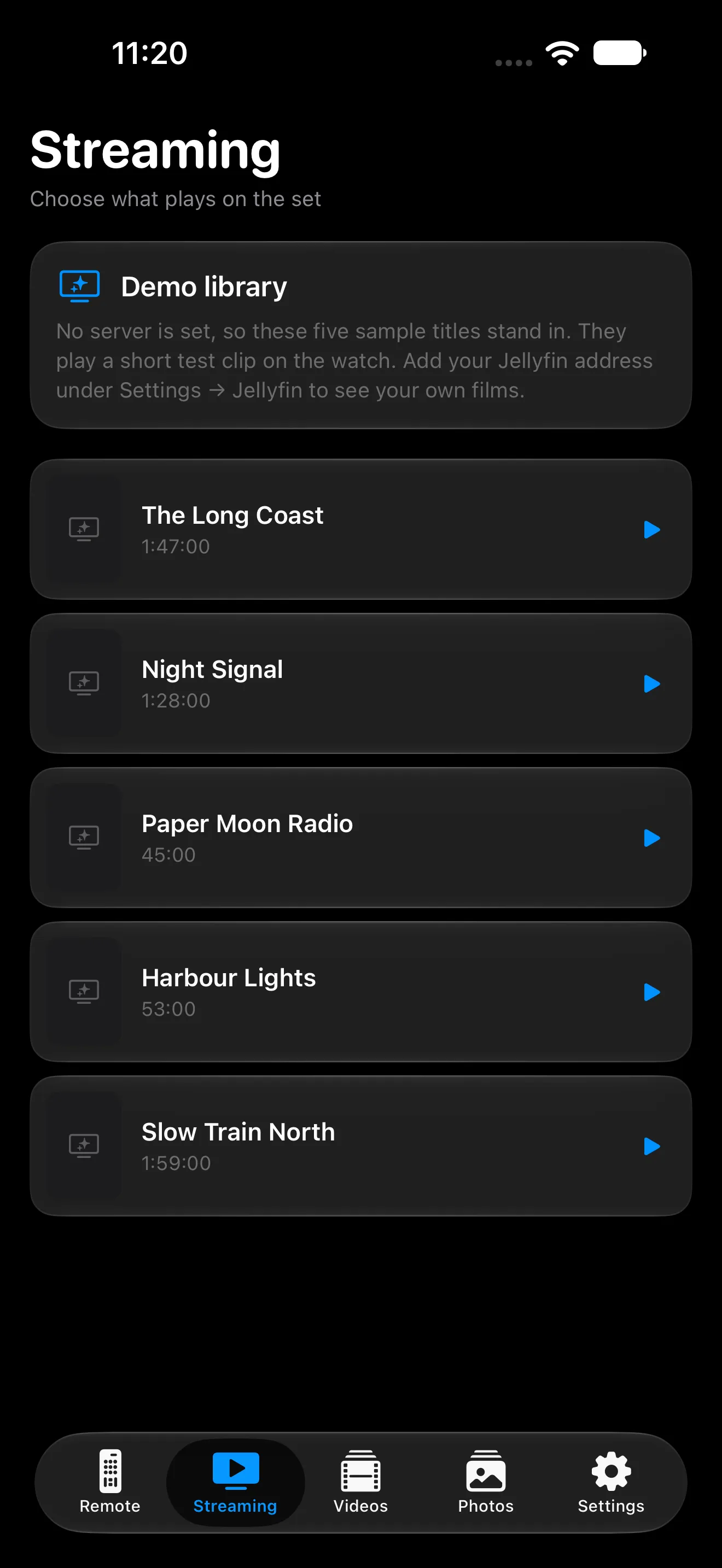
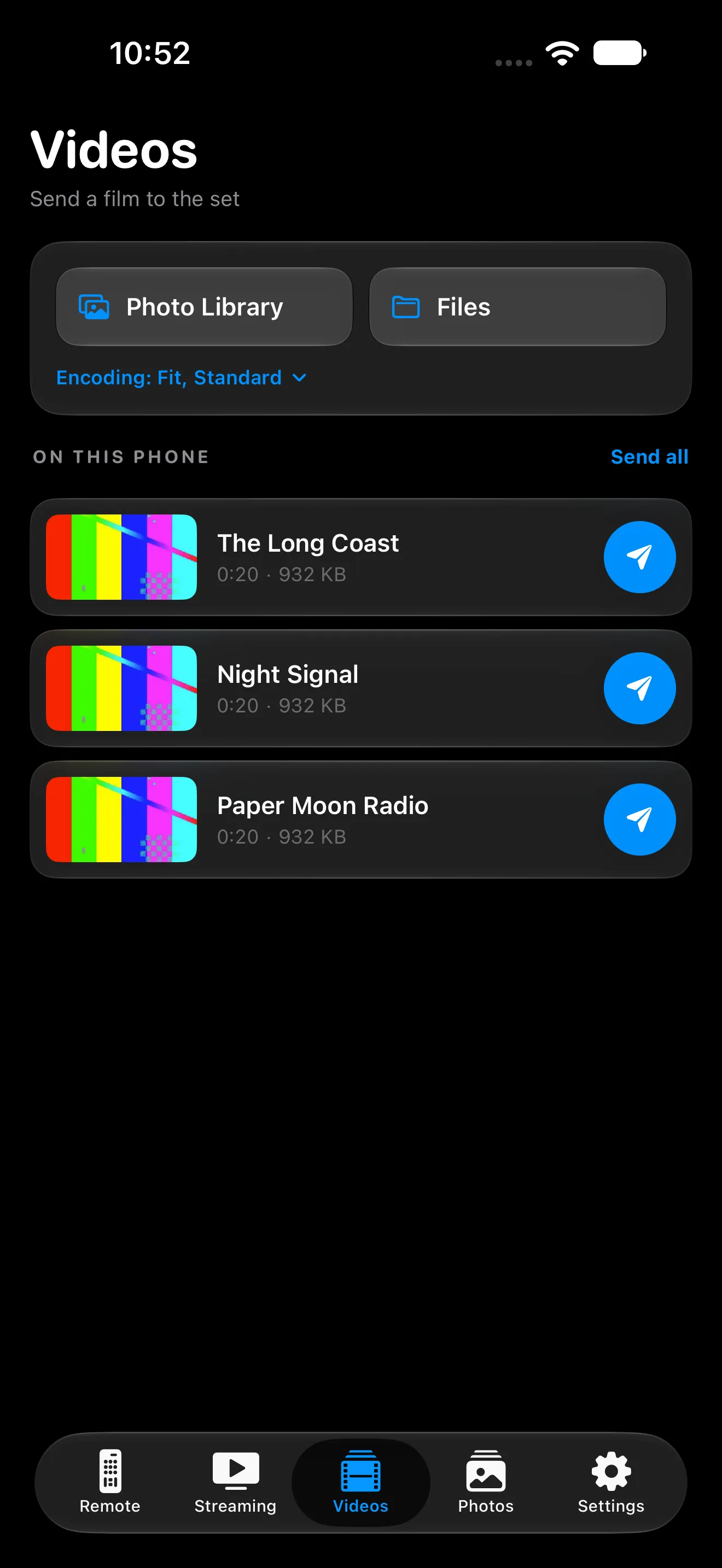
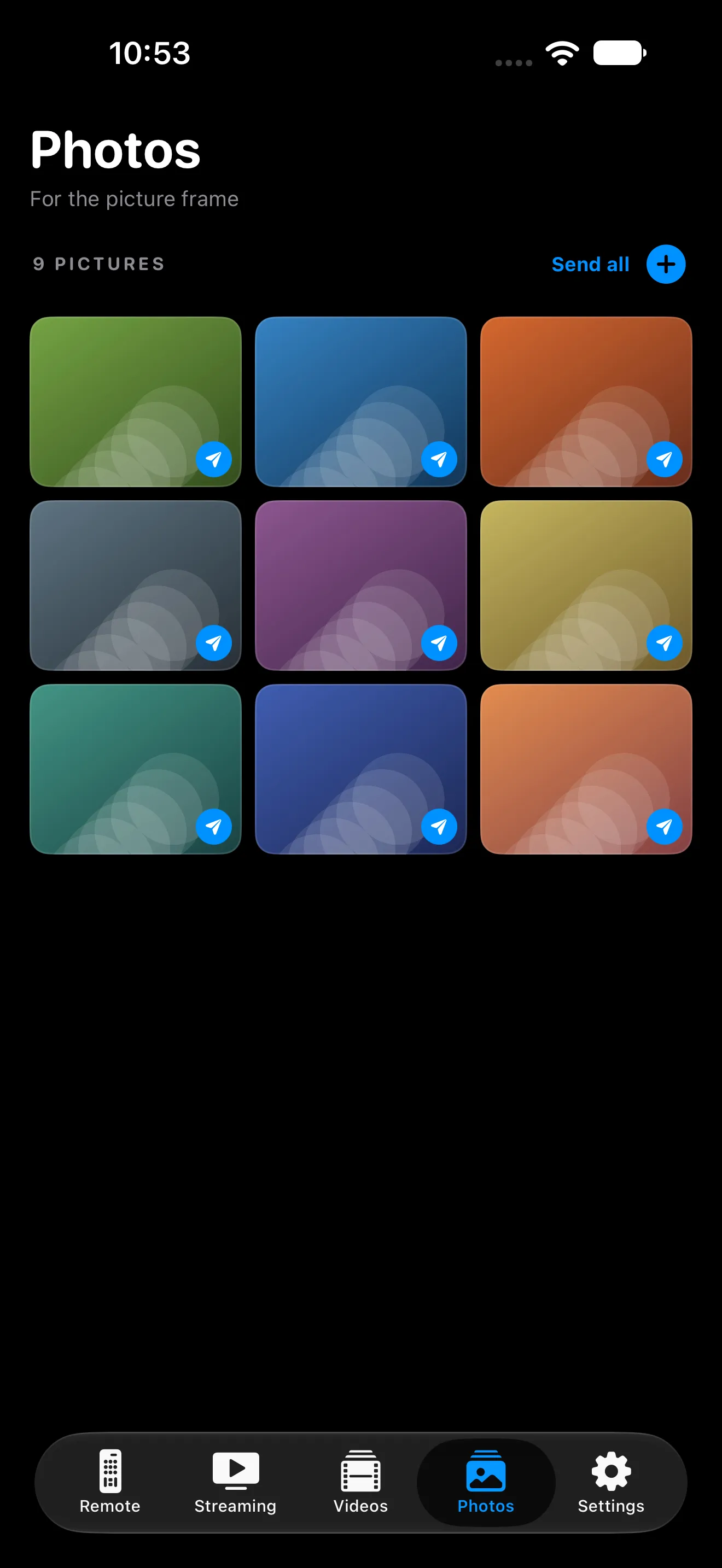
The screens
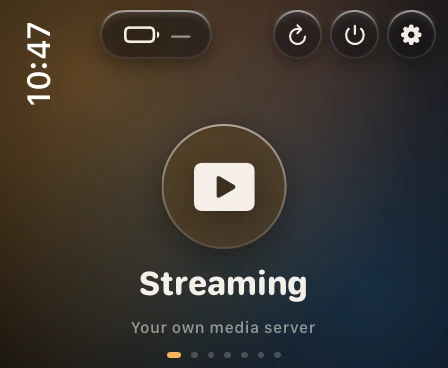
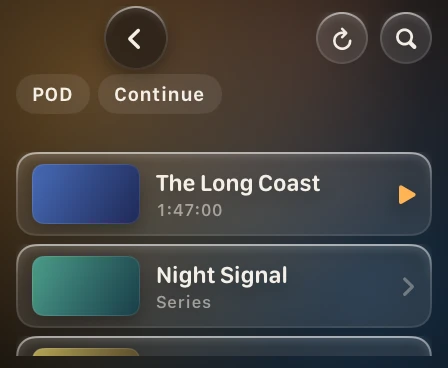
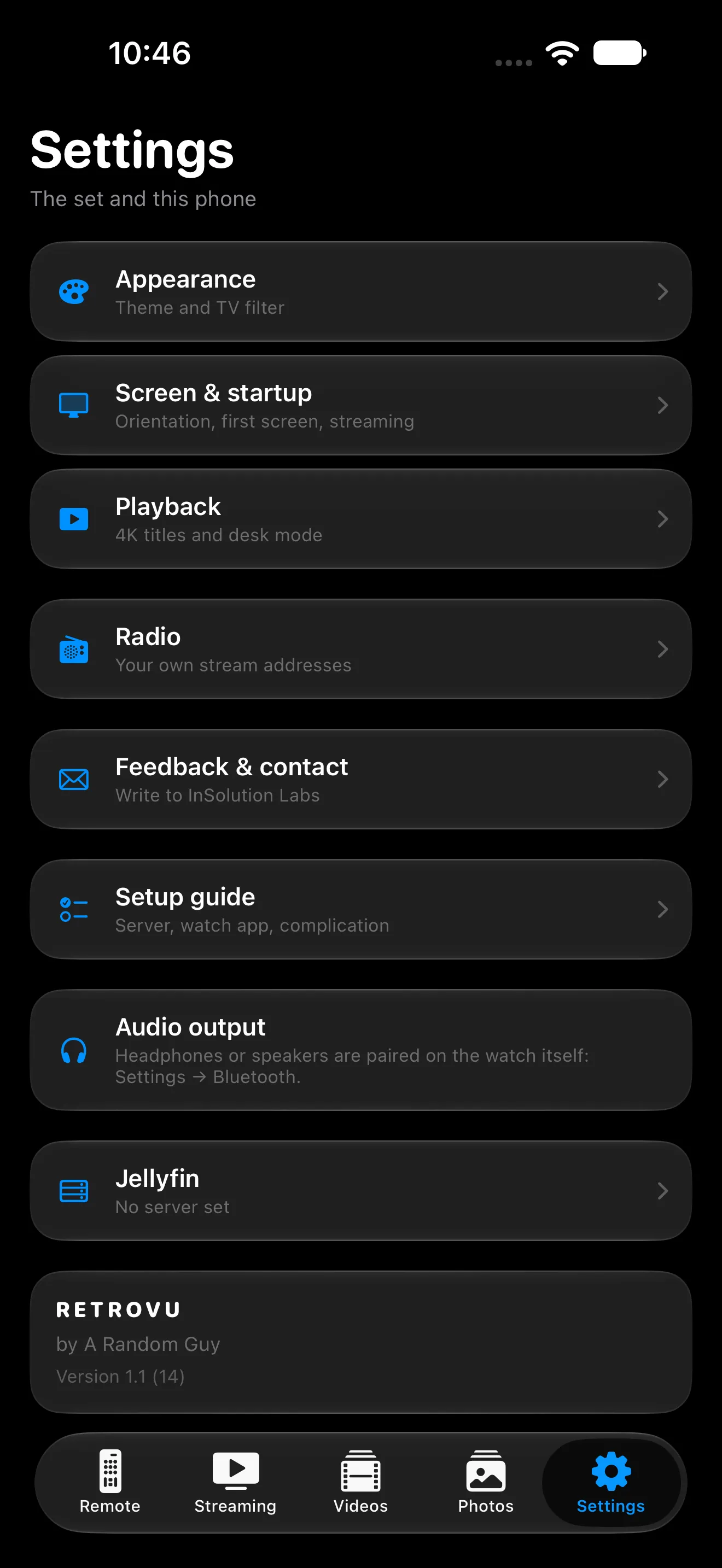
The app turns its own interface; watchOS keeps the clock where it is.
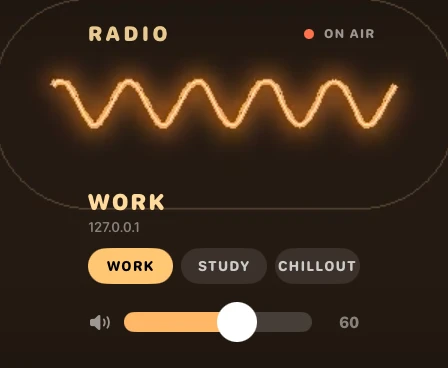
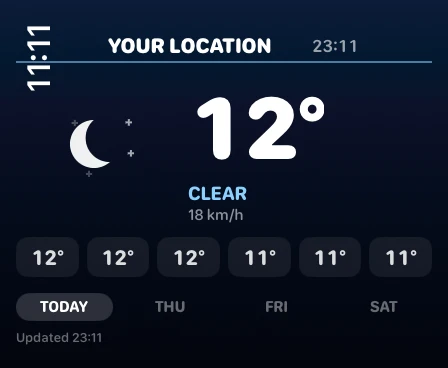
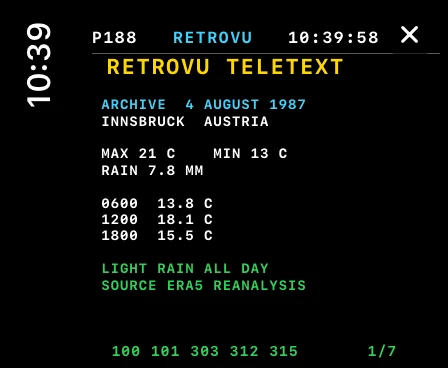
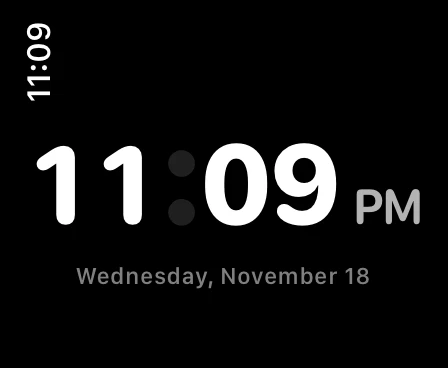
Ten filters
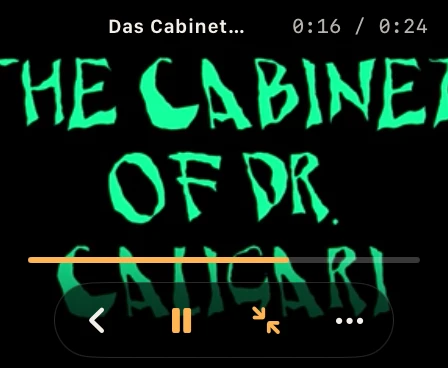
Trinitron, green phosphor, and everything off. The filter covers the menus as well as the film.


Moving pictures
What is inside
From a 1968 Trinitron to a green phosphor monitor — scan lines, curvature and grain, over the menus as well as the picture.
Films and series with resume and next episode, straight from your own server.
Send a file from the iPhone over Wi-Fi and the watch keeps its own copy.
Radio for your own stream addresses — up to three, named by you. Plus a clock with alarm and timer, a 1980s weather page and teletext with real archive data. Addresses to try.
Transport, volume, every screen of the watch — and the films stored on it — from the iPhone.
A complication with the time and the television symbol. One tap opens the app.
Nothing to sign up for, nothing uploaded, no tracking. The server is yours.
Setting it up
The iPhone app shows the same list on first launch, and again from Settings.
Enter your Jellyfin address and an API key once. The watch receives both from the phone. Server not set up yet?
iPhone → Watch app → Retrovu → Install. Then open Retrovu on the watch once: it asks this phone for the server details.
Press and hold the watch face → Edit → Complications, pick a slot and choose Retrovu. A tap on it opens the app. Step by step
The Videos tab turns a file into the watch's format and sends it over Wi-Fi. Streaming from your server needs none of that.
Without a server the app shows a demo library, so you can look around first.
Requirements
New to Jellyfin? The setup guide takes you from an empty machine to a library on the watch. Watch-side tips are in Using the watch.
Frames and stands
Retrovu wants the watch on its side, like a television. These community designs on MakerWorld are built for exactly that — print one, drop the charger in, and the watch becomes the set.
Links lead to MakerWorld. Each model has its own licence and its own requirements for watch size. We are not affiliated with the designers.
What watchOS decides
These are the ones people ask about.
| What you see | Why it happens |
|---|---|
| The time stays in the corner | watchOS draws it while an app runs. No third-party app is allowed to hide it. |
| Menus dim after a few seconds | watchOS lowers the display when no video is playing. Retrovu runs a silent screensaver after twelve seconds; weather and the player keep the picture awake. |
| No custom watch faces | The platform only allows complications. Retrovu offers one for any slot your face has. |
| 4K and HDR titles are hidden | The watch cannot decode them. They can be shown again under Settings → Playback, but will not play. |
| Some radio streams stay silent | Retrovu plays MP3 and AAC. Ogg Vorbis streams need transcoding, which the watch does not do. |
| Mirroring is missing from Settings | Apple Watch Mirroring needs iOS 16 and watchOS 9, with both devices awake and near each other. |
What it cannot do
Netflix, Disney+, Prime Video and Apple TV+ are not supported, and they never will be: those services deliver encrypted streams and do not allow players made by others.
Retrovu is for the library you own.
Also
Questions
Without a server the app shows a demo library. For the real one: open the iPhone app, go to Settings → Jellyfin, enter the address and API key, then “Send to watch”. Tap the refresh button at the top of Streaming on the watch.
The address is the IP of the machine running Jellyfin, port 8096 — for example http://192.168.1.20:8096. The key is in the Jellyfin dashboard under API Keys.
The system only reports the watch as reachable while the watch app is in the foreground. Open both apps. Streaming and file transfer also work without that link, as long as both devices are on the same Wi-Fi.
Usually a Wi-Fi dropout. The app buffers for 60 seconds. A network cable on the server machine and a disabled VPN remove the most common cause.
No stations ship with the app. Add your own stream addresses under Settings → Radio on the watch — up to three, each with a name you choose. Addresses to try are on their own page.
watchOS draws the clock while an app runs, and third-party apps are not allowed to remove it. It is the one part of the screen Retrovu cannot control.
watchOS lowers the display when no video is playing. Menus show a silent screensaver after twelve seconds; a playing film or the weather page keeps the picture awake.
4K and HDR titles are hidden because the watch cannot decode them. Settings → Playback shows them again, but they will not play.
No. See above — Retrovu plays your own library only.
More answers on the support page.
Credits
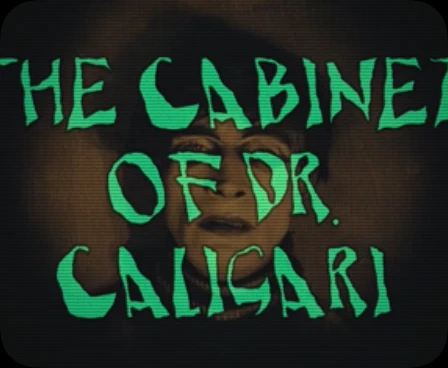
The screenshots on this page are the app's own interface. Film footage that appears in older marketing photographs is in the public domain or used under a free licence. Das Cabinet des Dr. Caligari (1920), directed by Robert Wiene, is in the public domain.
Retrovu ships no films. What plays on the watch is whatever is on your own server or in your own files.
Releases
First release. Streaming from your own Jellyfin server, ten CRT filters, radio by stream address, clock, weather and teletext, a remote on the iPhone, and a demo library to try without setting anything up.
On the App Store in 175 countries and regions, the EU included.
Later versions appear here as they ship, and in the App Store’s own release notes.
Retrovu is on the App Store in 175 countries and regions, the EU included.